



You know how it goes. You are on a business trip, vacation, or conference, and you come back to an inbox so full you wish you had hired an assistant to sift through the messages and pick out the important follow-ups. Did you know Claude can do that for you with a single sentence prompt?
Recently, I celebrated my birthday, then traveled to a friend’s milestone birthday for a week. Once I got home, I was at the HumanX conference for another week. Every day, my inbox kept piling up.
AI’s superpower is cutting through the noise
Claude, ChatGPT, and Gemini are trained on human-generated content, so it is no surprise that they can read your inbox and find the important things.
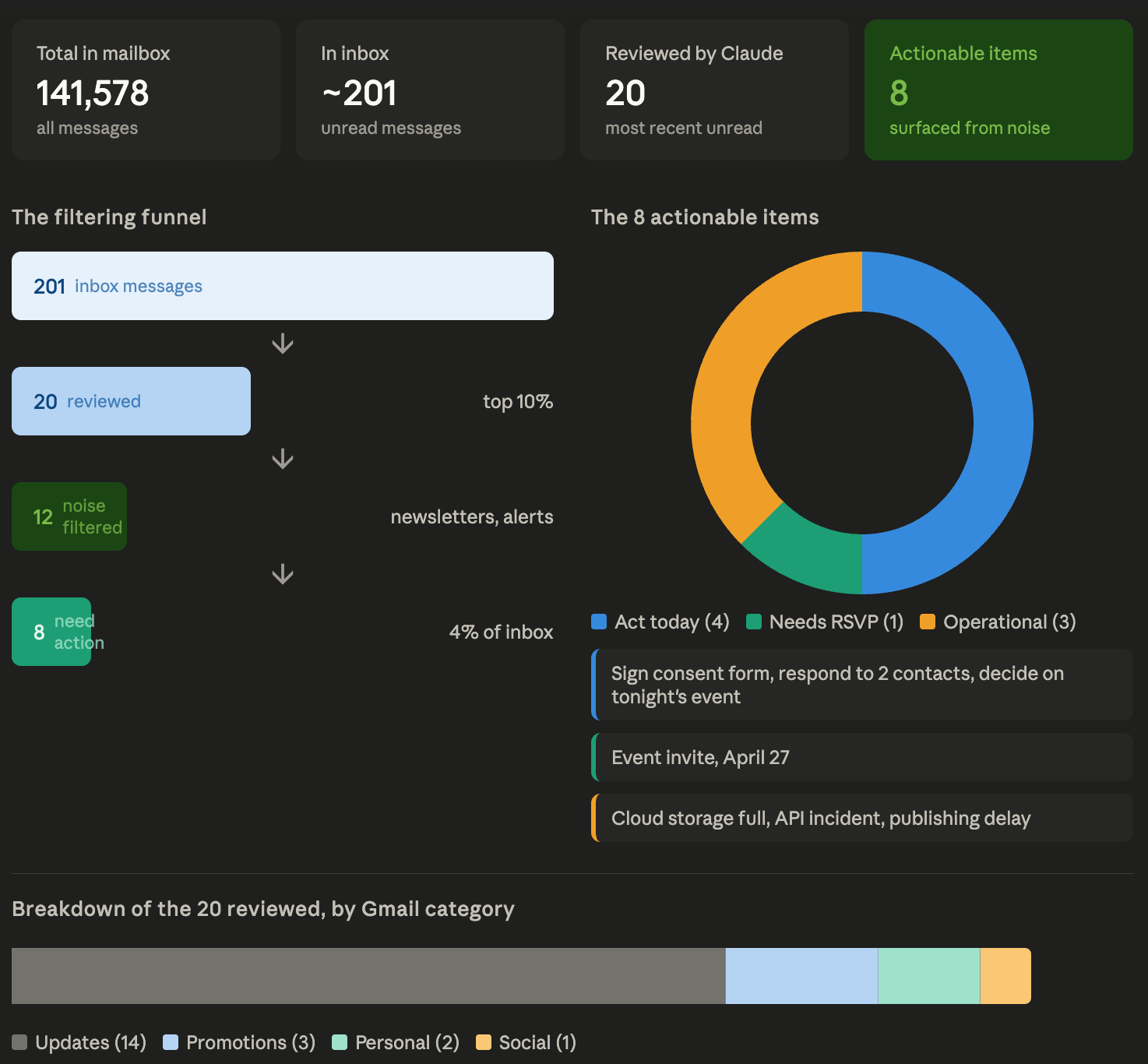
When I sat in my chair this morning, I used a single sentence prompt to identify important follow-up items. Out of about 200 emails I have yet to read, Claude found about 20 that required a detailed review, filtered out 12 as noise, and identified the 8 that required my immediate attention.
I asked Claude to generate a chart showing how it filtered my emails, so this is a real snapshot from my Cambermast inbox:
The One-time setup that takes two minutes
As I mentioned, this Claude feature is built in, but you do need a paid account.
One-time setup: Connect Claude to your Gmail account
Go to https://claude.ai and log in.
Start a new chat (you do not want to do this in an existing chat, as Claude may not be as accurate)
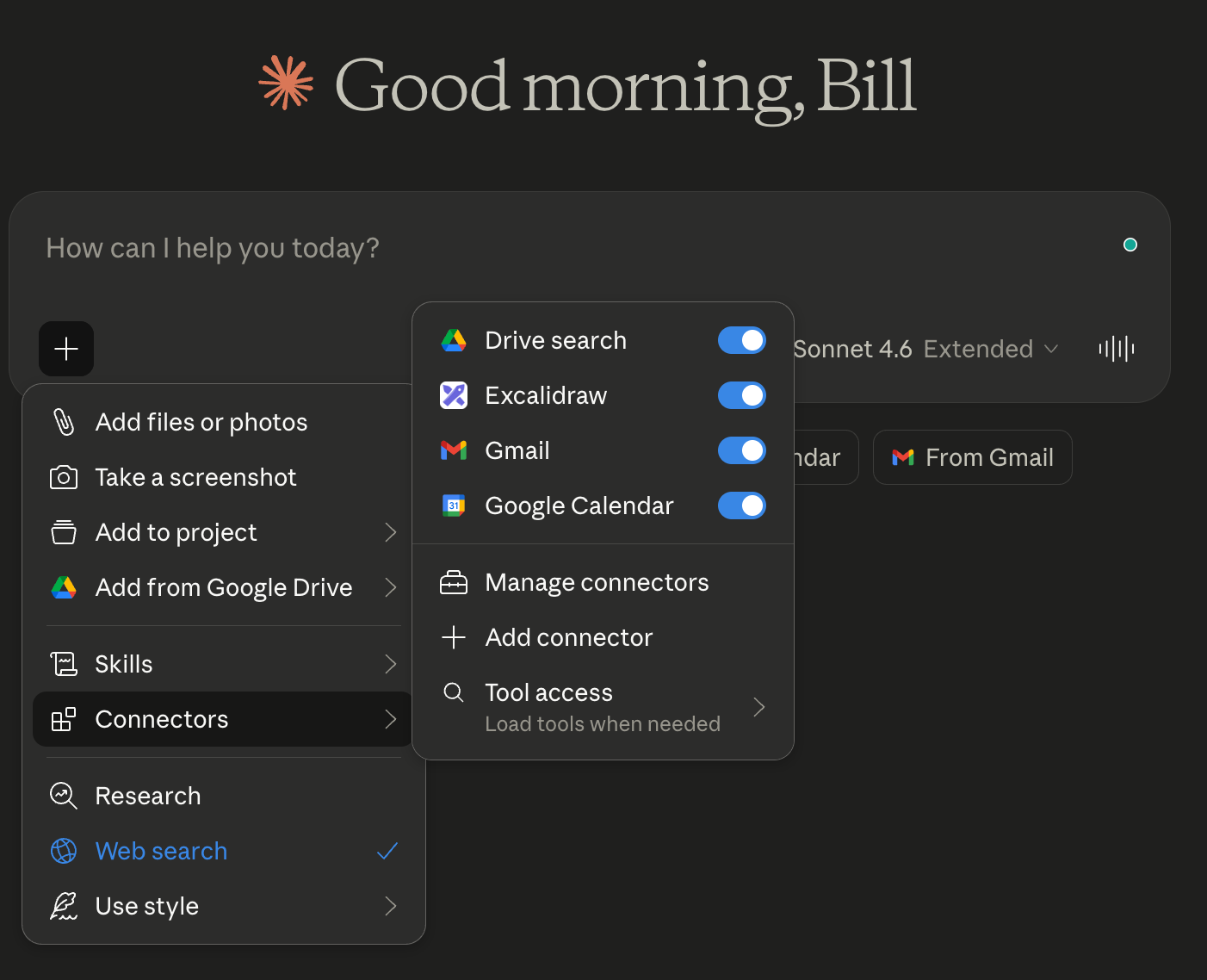
In the prompt box, select the + item, then select Connectors, and finally select Gmail, as shown in the following image.
💡 If this is your first time connecting to Gmail, select the Add connector item, select Gmail, then enable it.
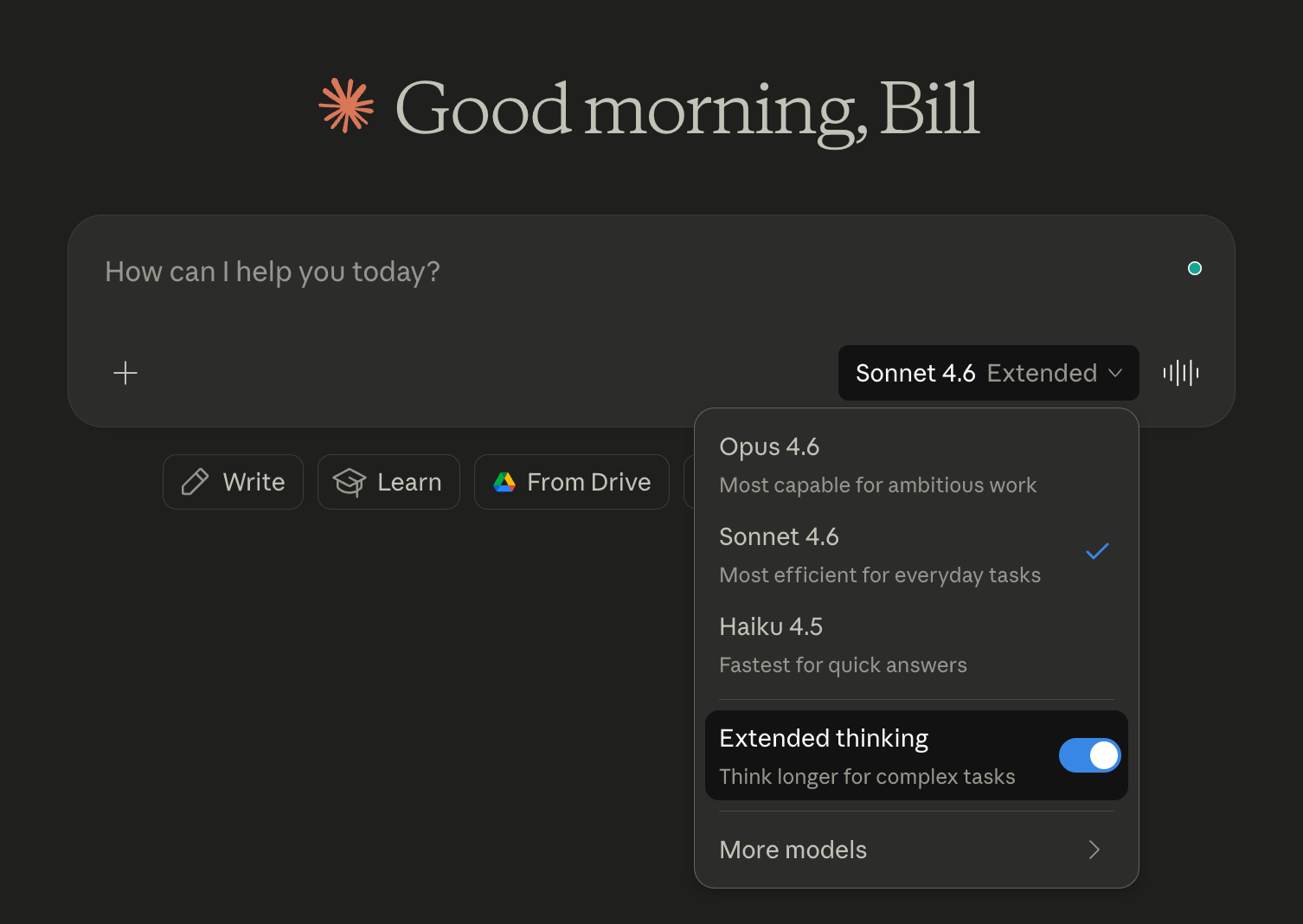
In the same prompt box, select the model picker and then enable Extended thinking.
💡 While Claude should be able to find your follow-up meetings with a basic prompt using the default model, I recommend you enable Extended thinking, as the results were better for me. You should try both and see what works best for you.
That’s it! Now you can begin finding follow-up emails.
The single-sentence prompt to get your inbox items
Once Gmail is connected, you can prompt with any number of questions, but the point of this email is to help you find follow-up items.
Prompt:
Please review my inbox and let me know if there are any items I should follow up on, especially immediately.
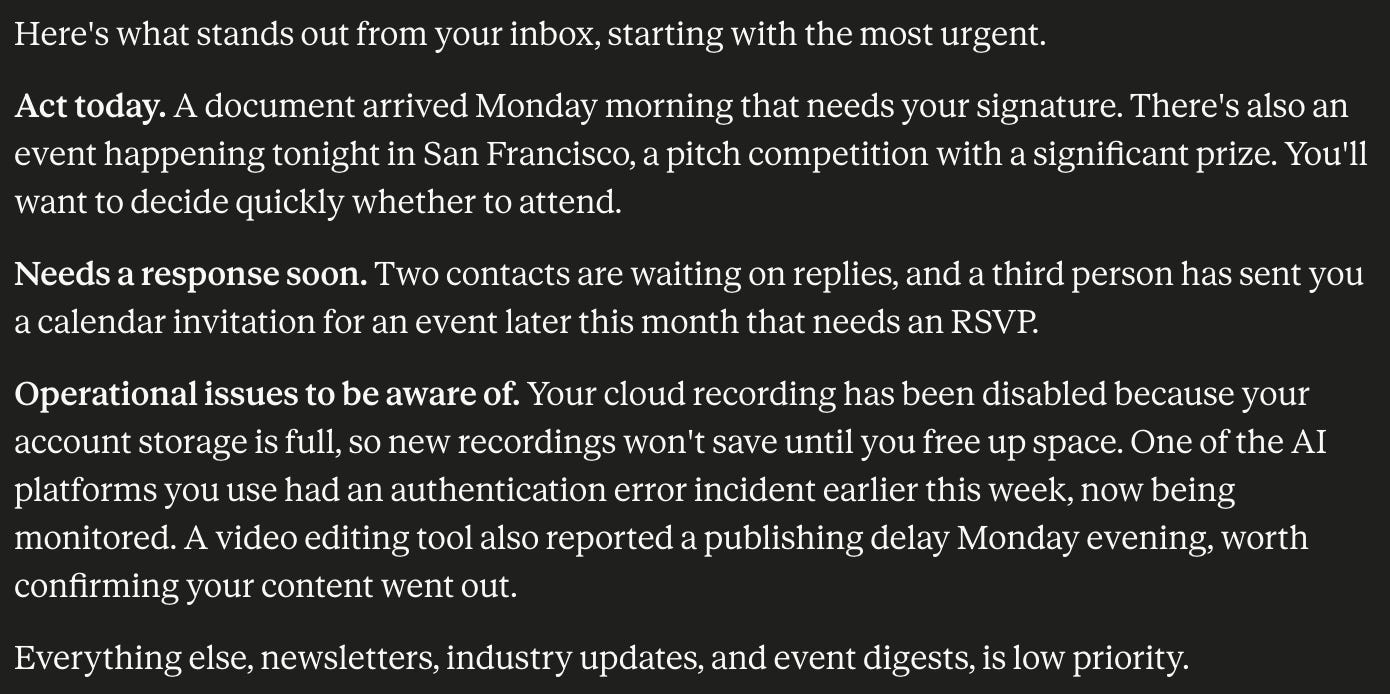
Claude did the rest. It searched through my unread messages, prioritized them by urgency, and gave me a clear action list.
Here are the (anonymized) results after my conference last week:
How it works and why it matters
Claude can access my email data, understand context, distinguish between signal and noise, and present information in a way that respects my time.
The email overload problem has not been solved since Gmail launched. We create folders, labels, filters, and rules, but those are all manual systems that require you to anticipate your own needs. An agent works differently. It understands what matters to you in real time and brings it to the forefront.
Important limitations
As of this writing, there are a few things you should know about Claude’s limitations.
